Getting started
Your day in Trakto: the entries and the checks
What gets entered each day and by whom, when to order material, and the ten-minute check that drives your decisions.
What do I actually do in Trakto every day?
A few entries as things happen (a truck in, an order in, a shift ends, a truck out) and a ten-minute check each morning that tells you what to order, what to make and what to ship.
1Your entries: when, and who
| When | Entry | Usually by | Where |
|---|---|---|---|
| A truck of material arrives | GRN, rate from the PO | Store | Buy → Goods In |
| A customer's order comes in | Sales order + work orders | Office | Sell → New Sales Order |
| End of every shift | Log Daily Production: all runs, rejects, flash | Supervisor | Production → Logs |
| A truck leaves | Dispatch from the sales order, with weighbridge | Office or store | Sell → Sales Orders → Dispatch |
| Oil, grease or a spare is used | Issue Stock → Spares & Consumables | Store | Inventory → Issue Stock |
| A bill is paid | Log Expense | Accounts | Cost → Expenses |
| A material is nearly finished | Physical count | Store | Inventory → Adjust Stock |
Most factories have 2–3 people making entries, and one person can do all of them. Roles only decide who sees rates and costs: store staff can record GRNs without seeing a rate.
2Production logged every day, checked from anywhere
Ask your supervisor or operator to log production at the end of every shift, every day, from the Trakto app on their phone right at the press, or from a computer. A day not logged is a day your stock, costs and targets don't know about.
You don't need to be at the factory to see it. Open the Trakto app on your phone: Home shows today's production, targets, monthly profit and stock value, wherever you are.
3When to place purchase orders
Order a material when its runway (days of stock left at your real daily use) is about its supplier's lead time. Each morning, filter Inventory → On Hand by Needs Reorder or Short Runway, then make the purchase order with an Expected by date. The runway then shows the stock-out date after that delivery, and so the next order date.
4Your ten-minute daily check
WhereDashboard → Today
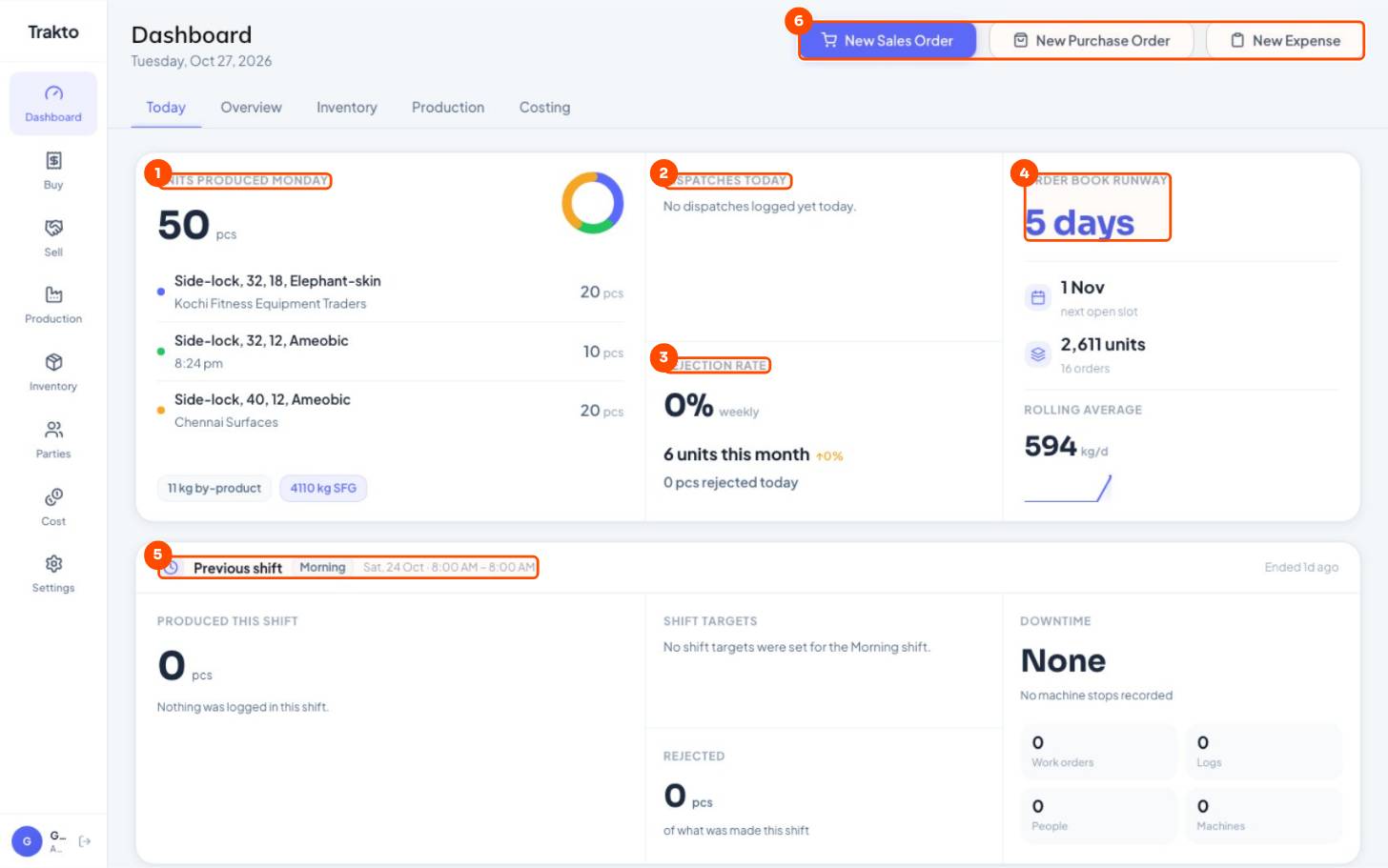
- 1What was madeGood mats by variant and customer, plus flash and compound.
- 2Dispatches todayTrucks out today and their profit.
- 3Rejection rateThis week. Rising? Talk to the shift.
- 4Order book runwayDays of orders in hand and the next free machine slot: promise delivery dates from here.
- 5Previous shiftOutput, rejects, missed targets and downtime of the last shift.
- 6Quick entriesNew Sales Order, Purchase Order or Expense in one click.
| Check | Tells you | Decide |
|---|---|---|
| Dashboard → Today | Last shift's output, rejects, downtime | Talk to the shift about rejects |
| Inventory → Short Runway / Needs Reorder | What runs out before the next truck | Place POs |
| Sales Orders → Ready to ship | Orders with stock waiting | Plan today's trucks |
| Sales Orders → Awaiting production | What still has to be made | Feed the machine queue |
| Work Orders → By Machine | Each press's queue and ready dates | Drag an urgent order up |
| Targets → Only missed | Missed shifts and reasons | Fix the cause: material, breakdown |
| Dashboard → Costing | A run that cost more than usual | Check its recipe or rates |
| Weekly: Sales & Margin | Thin-margin customers | Revisit rates |
5Every month
- Log all expenses: rent, power, wages.
- Count materials that are nearly used up; the difference becomes loss %.
- Finalize the month once all bills are in: estimates become real overheads.
- Review Sales & Margin and Costing before updating your price list.
Still stuck?
Book a set-up call. We'll configure your compound, variants and machines with you.