Orders & production
Log production: mats in, materials out
Two ways to log finished mats, rejects and the shift's flash.
Supervisors writing kilos of every chemical?
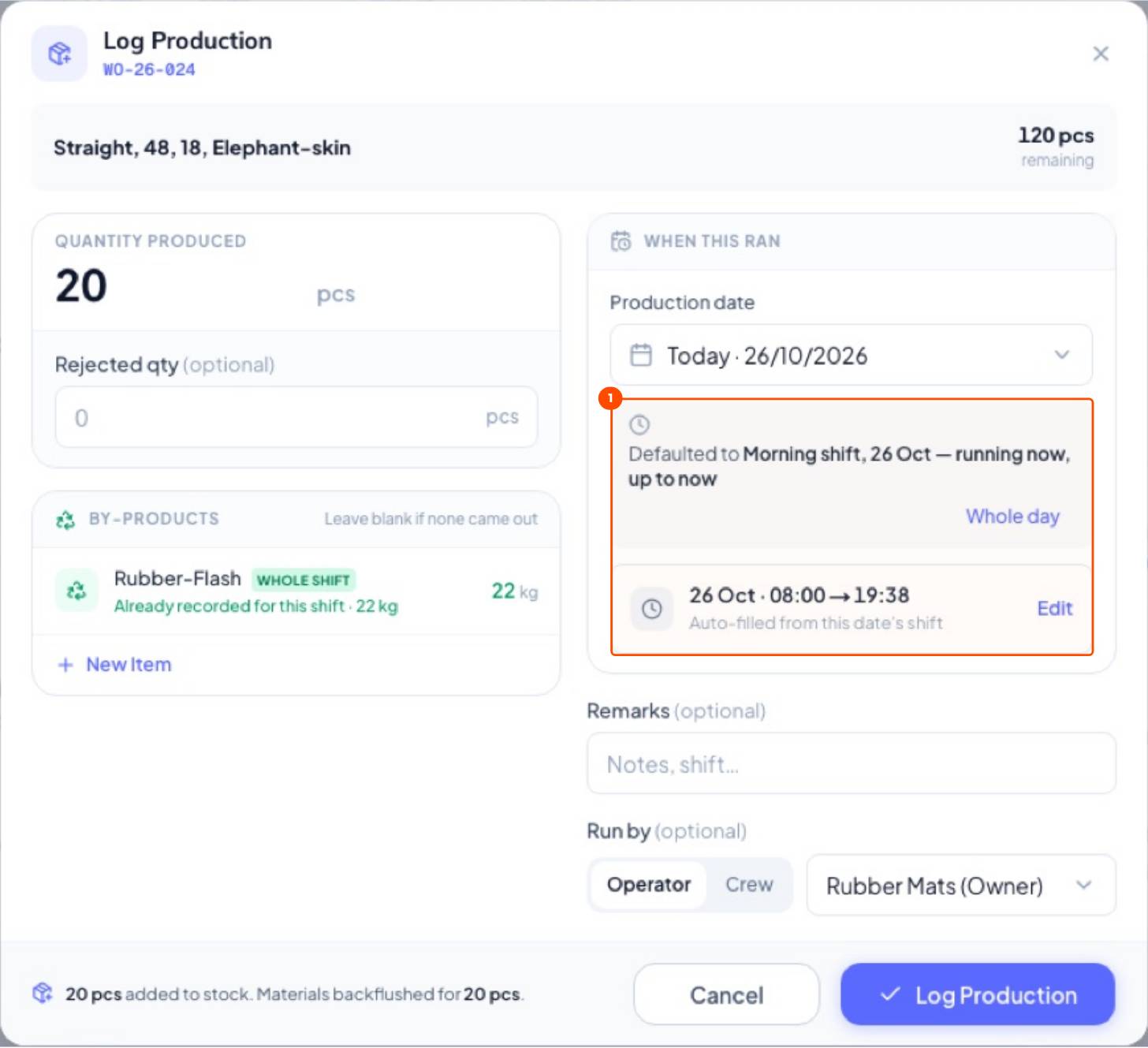
Log only good and rejected mats (plus the flash weighed this shift). Raw materials are deducted through the recipe at the same moment.
1From the work order
WhereProduction → Work Orders → In Production → Log production
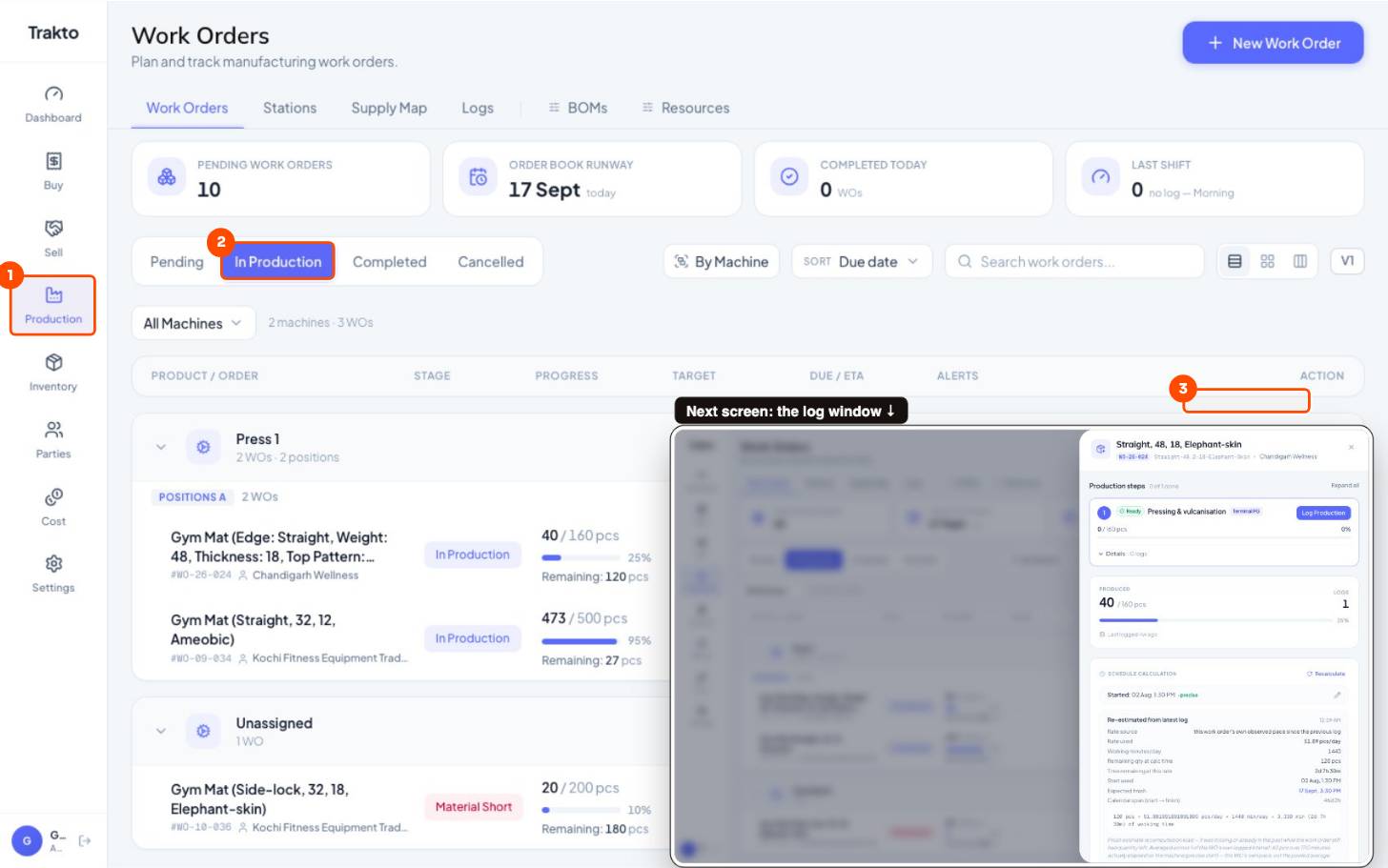
- 1ProductionWork Orders opens first.
- 2In ProductionOrders already running.
- 3Log productionLog good and rejected mats against this order.
2What a log shows
WhereProduction → Logs → click a log
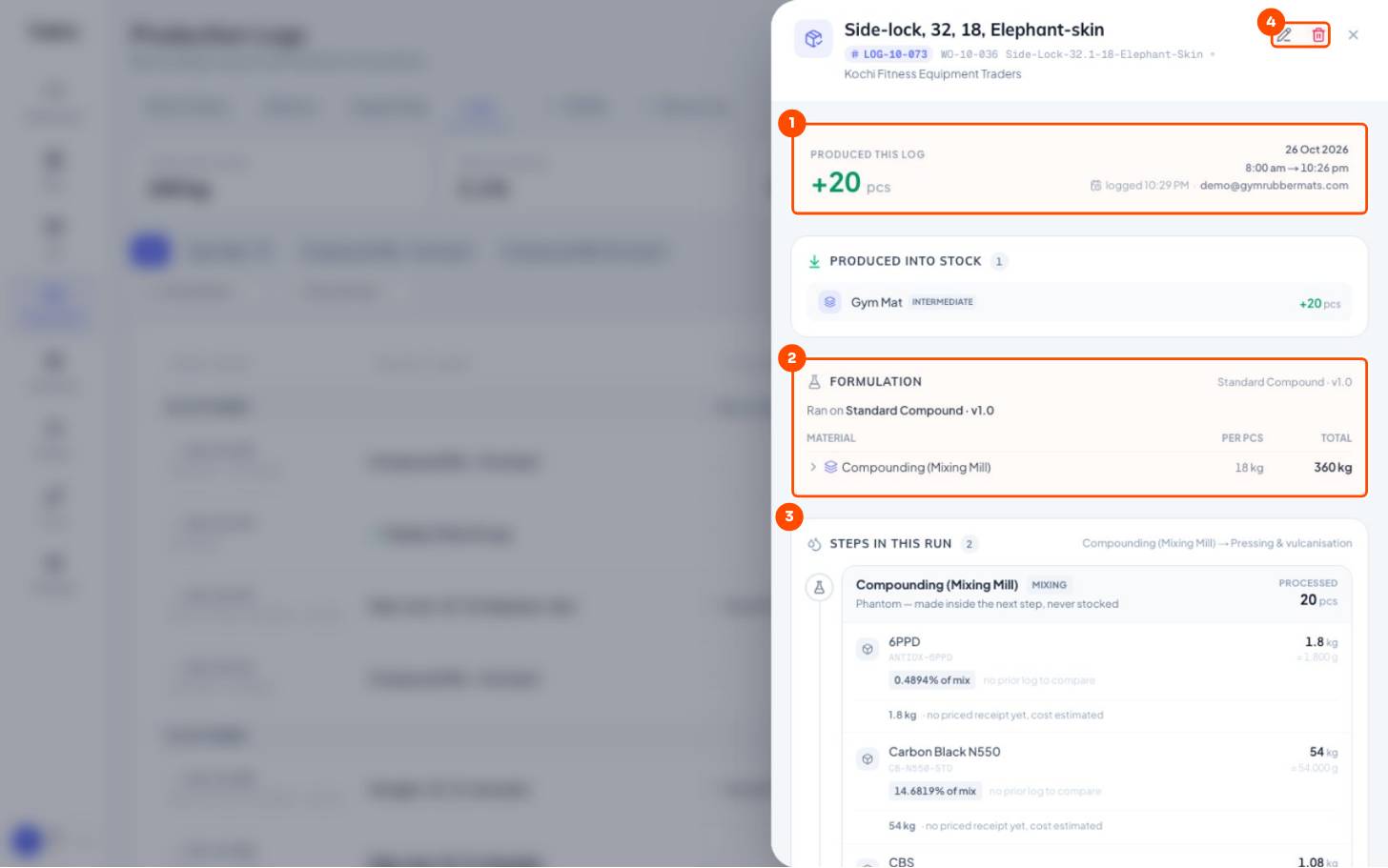
- 1What was made+20 mats, the date, shift window and who logged it.
- 2Formulation usedRan on Standard Compound v1.0: 18 kg compound per mat, 360 kg in all.
- 3Each material deductedPer step: kg of every material, its share of the mix, and the lot it came from.
- 4Edit or deleteThe pencil opens Edit production log; the bin deletes it and reverses the stock.
3Edit a log
Click the log, then the pencil at the top right.
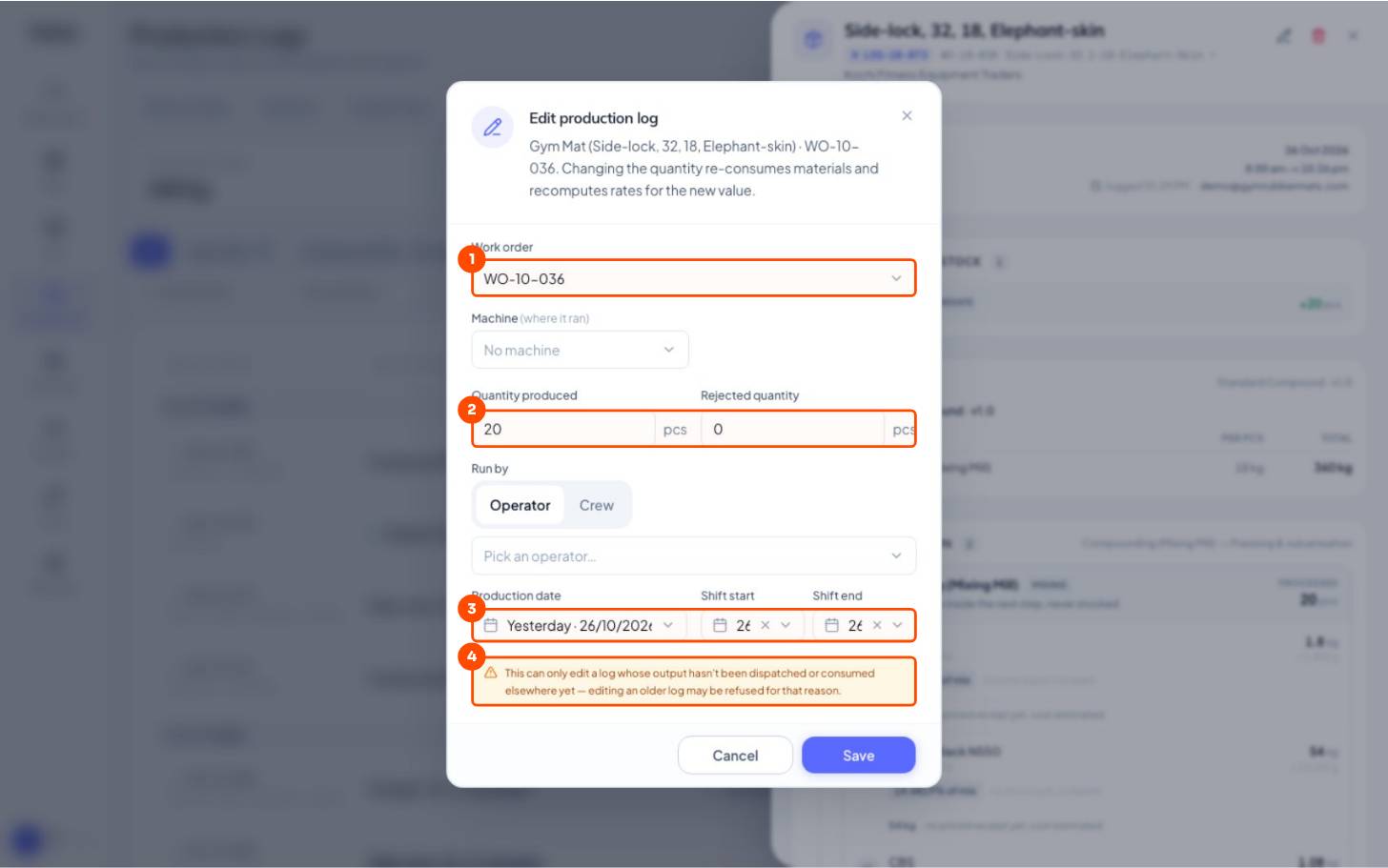
- 1Work orderMove the log to another work order if it was logged on the wrong one.
- 2Produced and rejectedChanging them re-deducts materials and recomputes the cost.
- 3Date and shift timesFix a wrong day or shift.
- 4When it's refusedIf the mats have already been dispatched or used.
4A work order's logs and progress
WhereProduction → Work Orders → click the work order

- 1StepsEach step with Log Production on it.
- 2Produced and logs473 of 500 made in 6 logs; material loss vs the recipe.
- 3Ready date, worked outThe pace used and the expected finish, recalculated after every log.
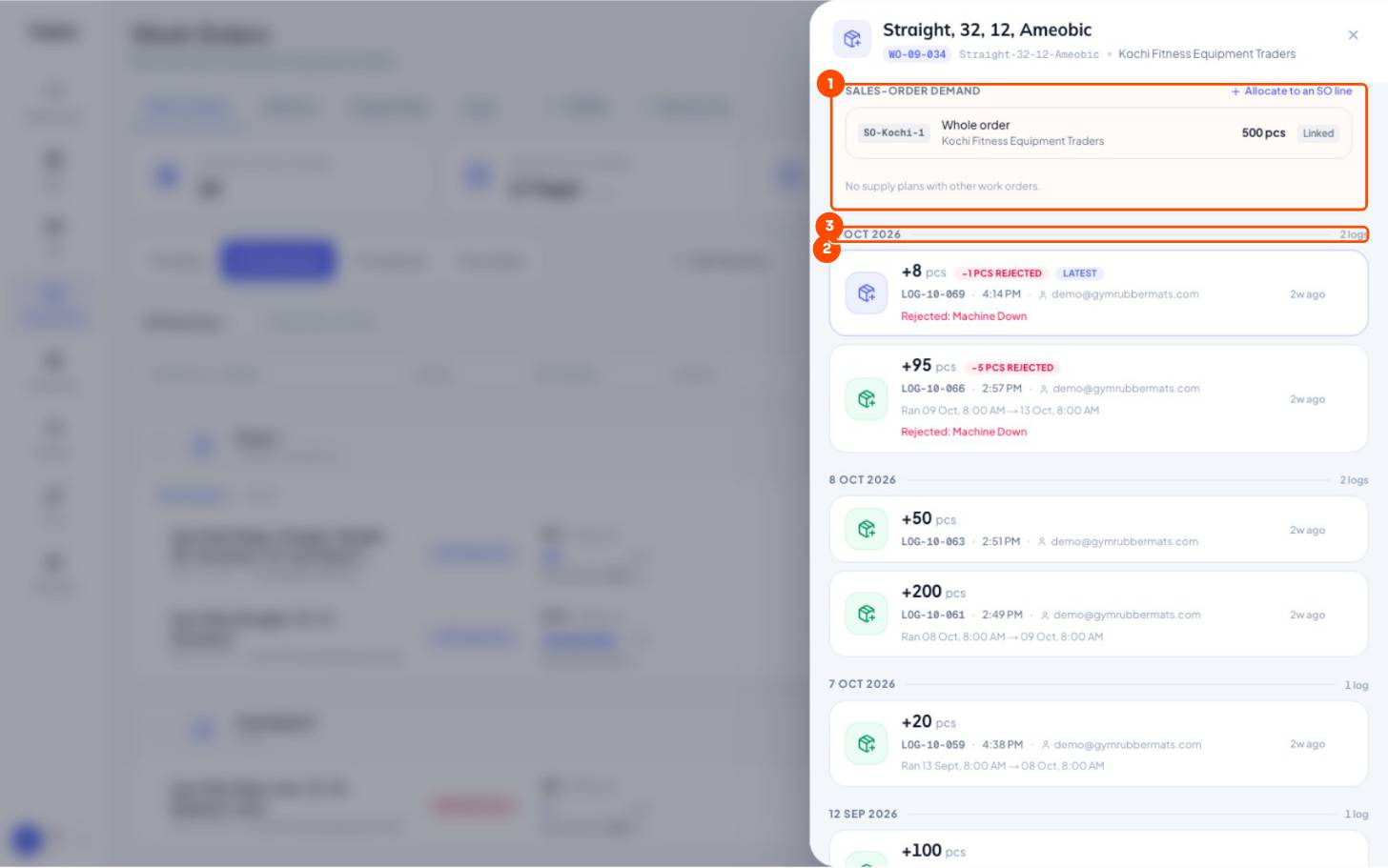
- 1Sales-order linkWhich order this work order supplies.
- 2Every logQty, rejects and their reason, who logged it. Click one to open it.
- 3By dayGrouped by production date.
5Log Daily Production: the whole shift on one form
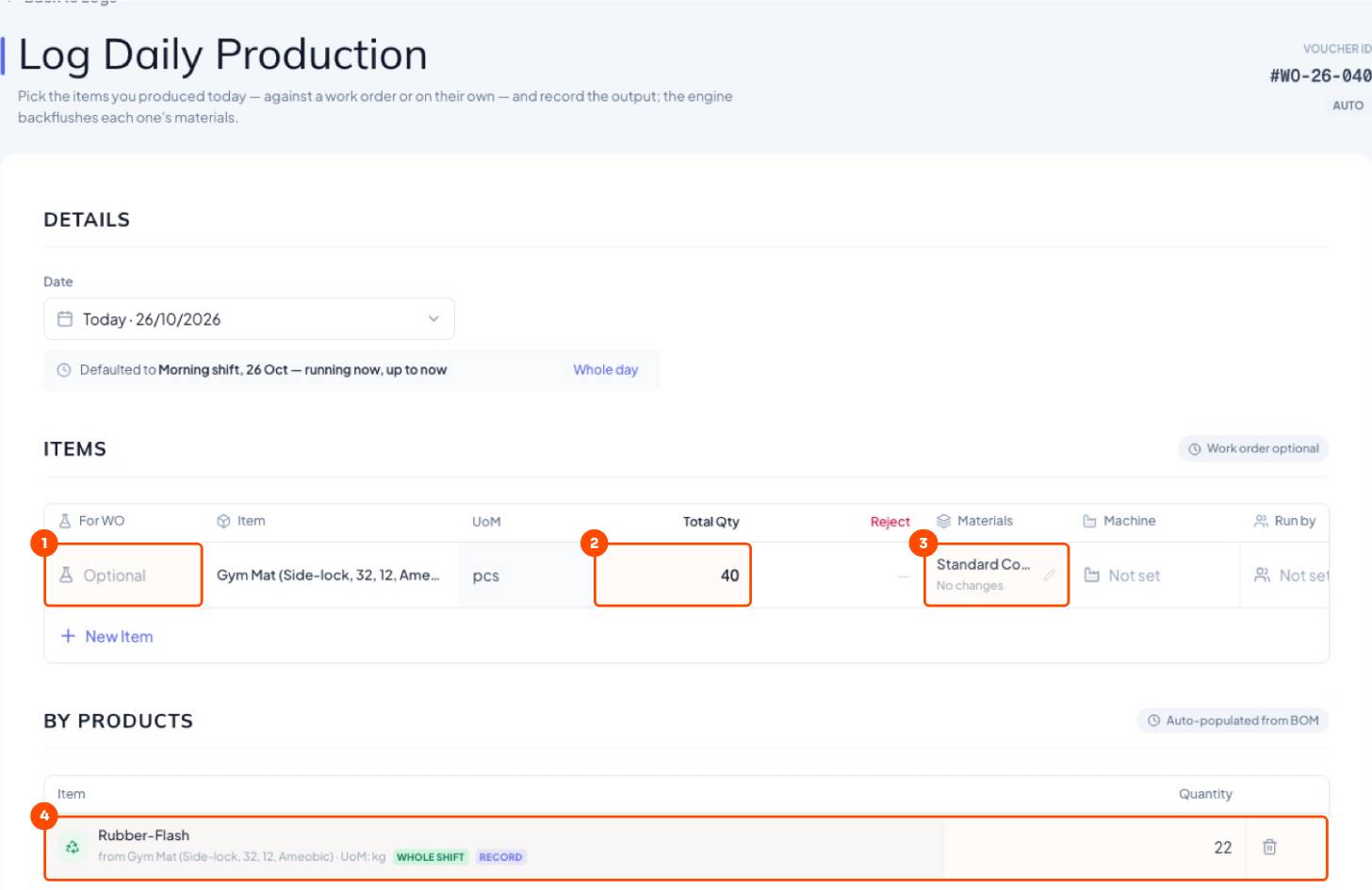
At the end of a shift, the supervisor enters every run at once: each work order with its good and rejected mats, the reason, the recipe and the machine, plus the flash for the whole shift. One save, and stock, materials and scrap are all booked.
WhereProduction → Logs → Log Production
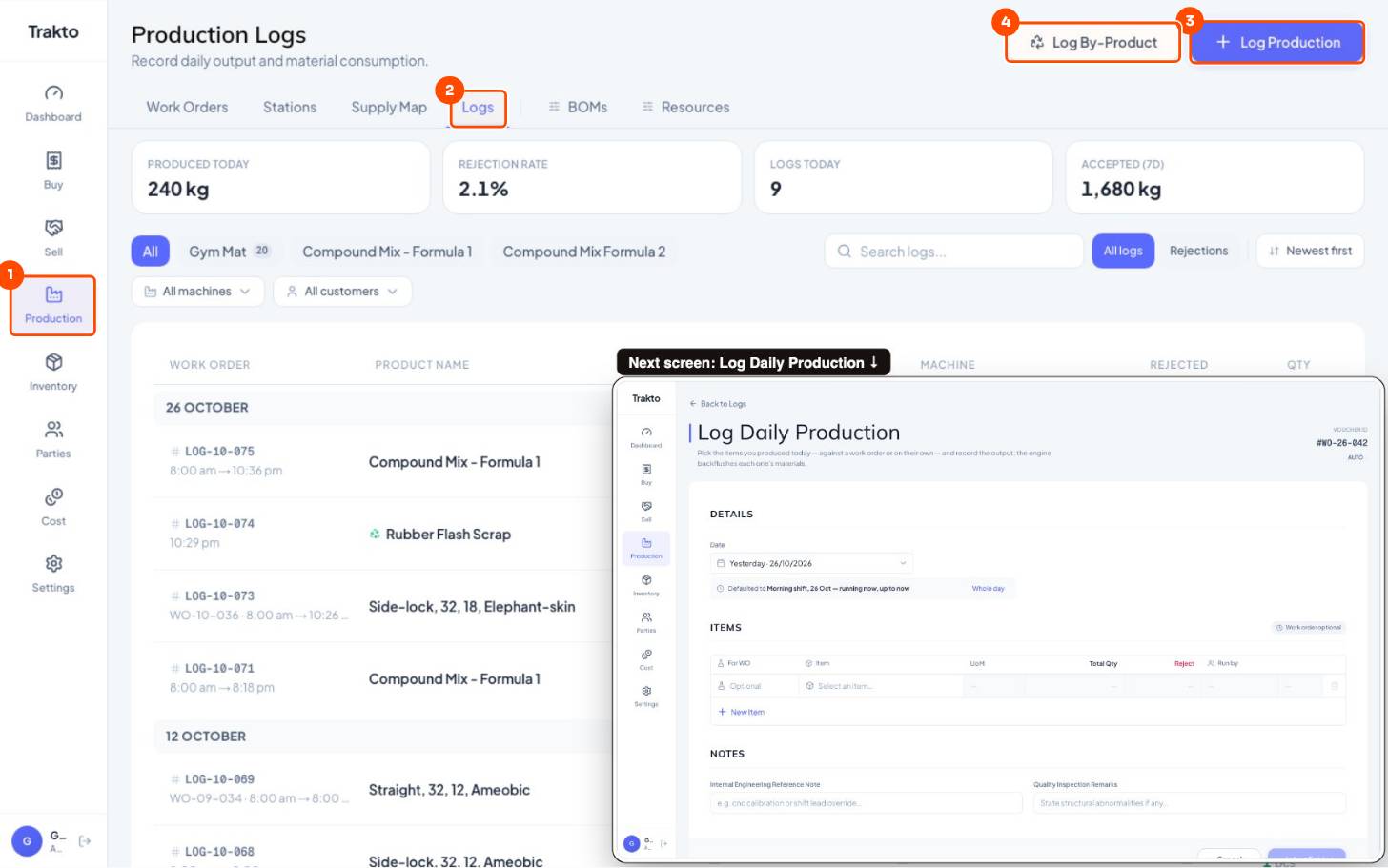
- 1ProductionIn the left menu.
- 2LogsEvery production log, newest first.
- 3Log ProductionSeveral rows at once: one per work order or product run this shift.
- 4Log By-ProductFlash or scrap weighed on its own.
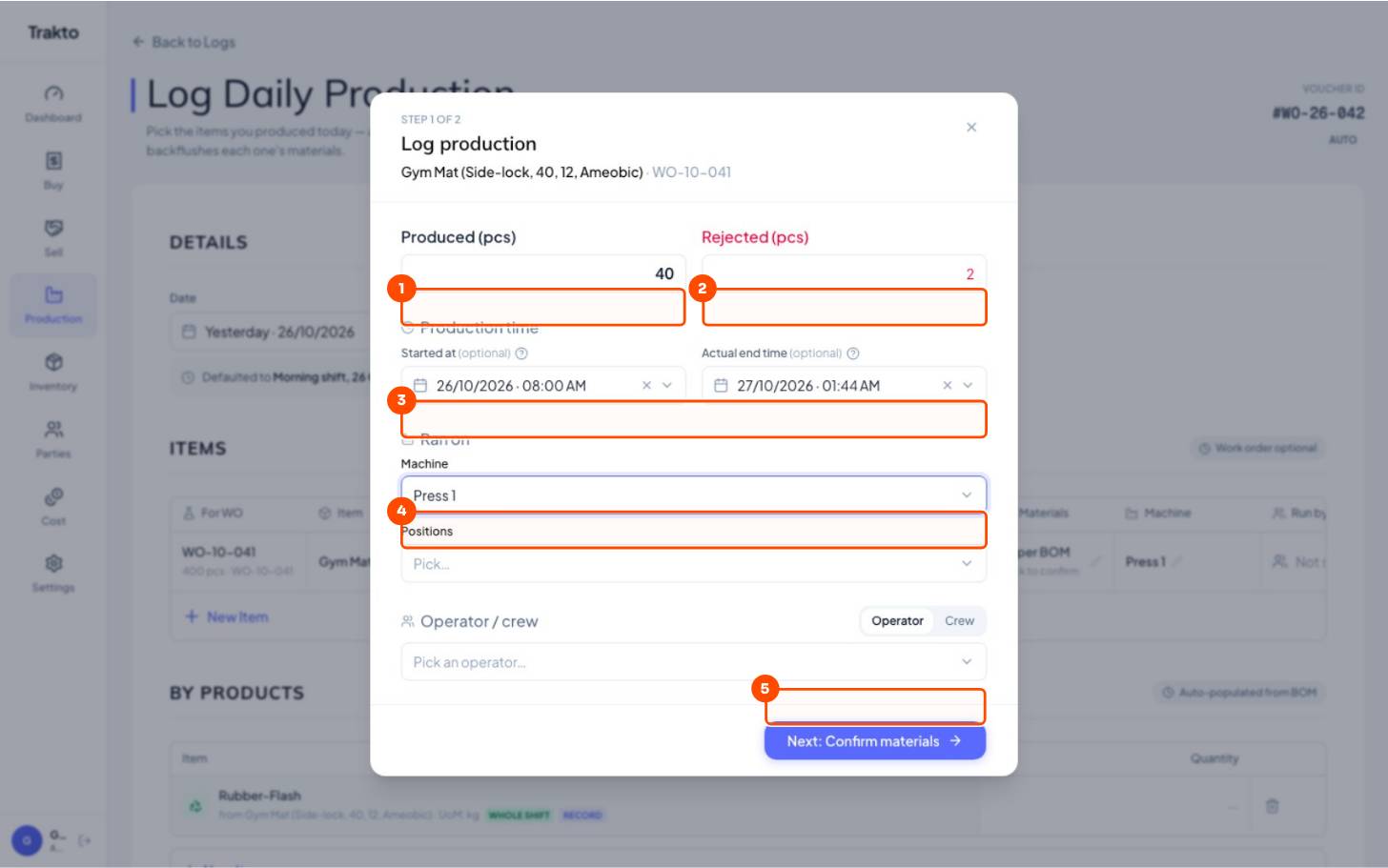
- 1ProducedGood mats from this run.
- 2RejectedKept apart from the good count, with a reason in the grid.
- 3Production timeFilled from your shift; change only if the run started or ended differently.
- 4MachineAsked when the work order has no machine yet.
- 5Next: Confirm materialsCheck or change the kg used, then the row returns to the grid.
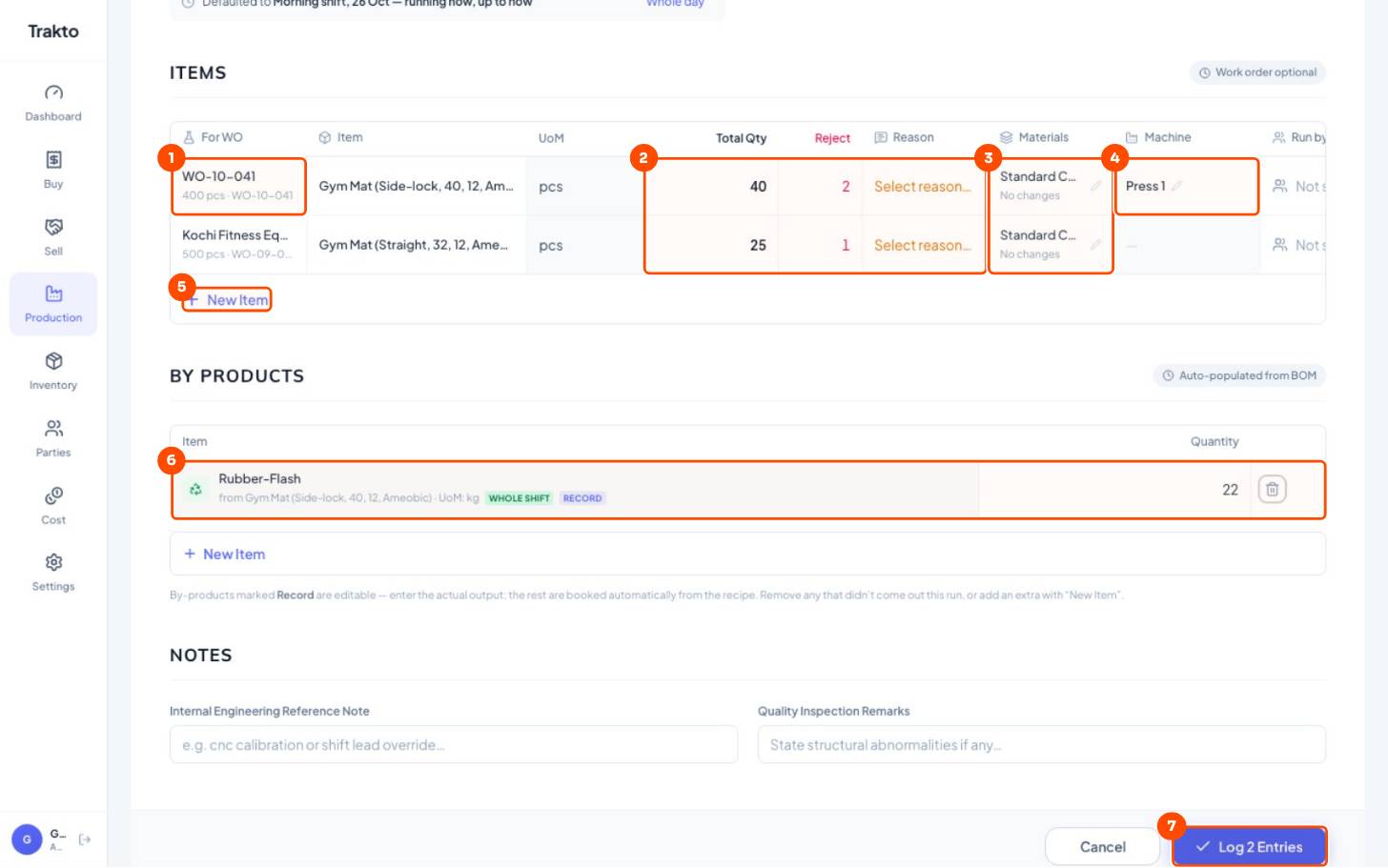
- 1One row per runPick the work order and the mat fills in. No work order? Pick the item instead.
- 2Good, rejected, reason40 good and 2 rejected on one order, 25 and 1 on the other. Pick why they were rejected.
- 3Formulation usedThe recipe each row ran on; the pencil changes it or the kg actually used.
- 4MachineWhere it ran: Press 1.
- 5New ItemAdd the next work order: the whole shift goes on one form.
- 6Flash for the whole shiftAdded by itself from the recipe, marked WHOLE SHIFT. Weigh the shift's flash once (22 kg); it isn't split by hand across the rows.
- 7Log 2 EntriesSaves every row at once: stock in, materials out, flash into stock.
Flash is entered once per shift, not per work order, because the press set-up says so (by-product Record per: Shift, see flash and scrap). Its value is credited against the mats using the last 7 days' flash per mat.
- Work order (optional) and the exact mat variant.
- Total Qty and Reject. Date and shift fill themselves in.
- Materials: check or change what's deducted. See enter actual materials.
- Flash under By Products → Log Entries.
Still stuck?
Book a set-up call. We'll configure your compound, variants and machines with you.