Orders & production
Sales order to work order: why both, and how
The sales order is what the customer wants; a work order is what the factory makes, one item at a time.
Already have the sales order. Why make a work order too?
A sales order is the customer's order: many items, rates, delivery. A work order tells the floor to make one item, in a quantity you choose, on a machine. Splitting them lets you make part now, make for stock, or move stock between customers.
1Sales order vs work order
| Sales order (SO) | Work order (WO) | |
|---|---|---|
| Is | What the customer wants | An instruction to make something |
| Items | Many: every variant the customer ordered | One item (one variant) |
| Quantity | What the customer ordered | What you decide to make now: can be less than the order, or several WOs for one line |
| Tracks | Rate, value, ready to ship, dispatched | Made, rejected, machine, targets, ready date |
| Ends when | Everything is dispatched | Its quantity is made |
Make part now
Order of 500: make 200 this week on Press 1, the rest next week as a second work order.
Make for stock
A work order with no customer builds stock for orders you expect.
Stock can move
Mats made for one order can serve a more urgent one: reprioritise, see reading a sales order.
2Create the sales order
WhereSell → New Sales Order
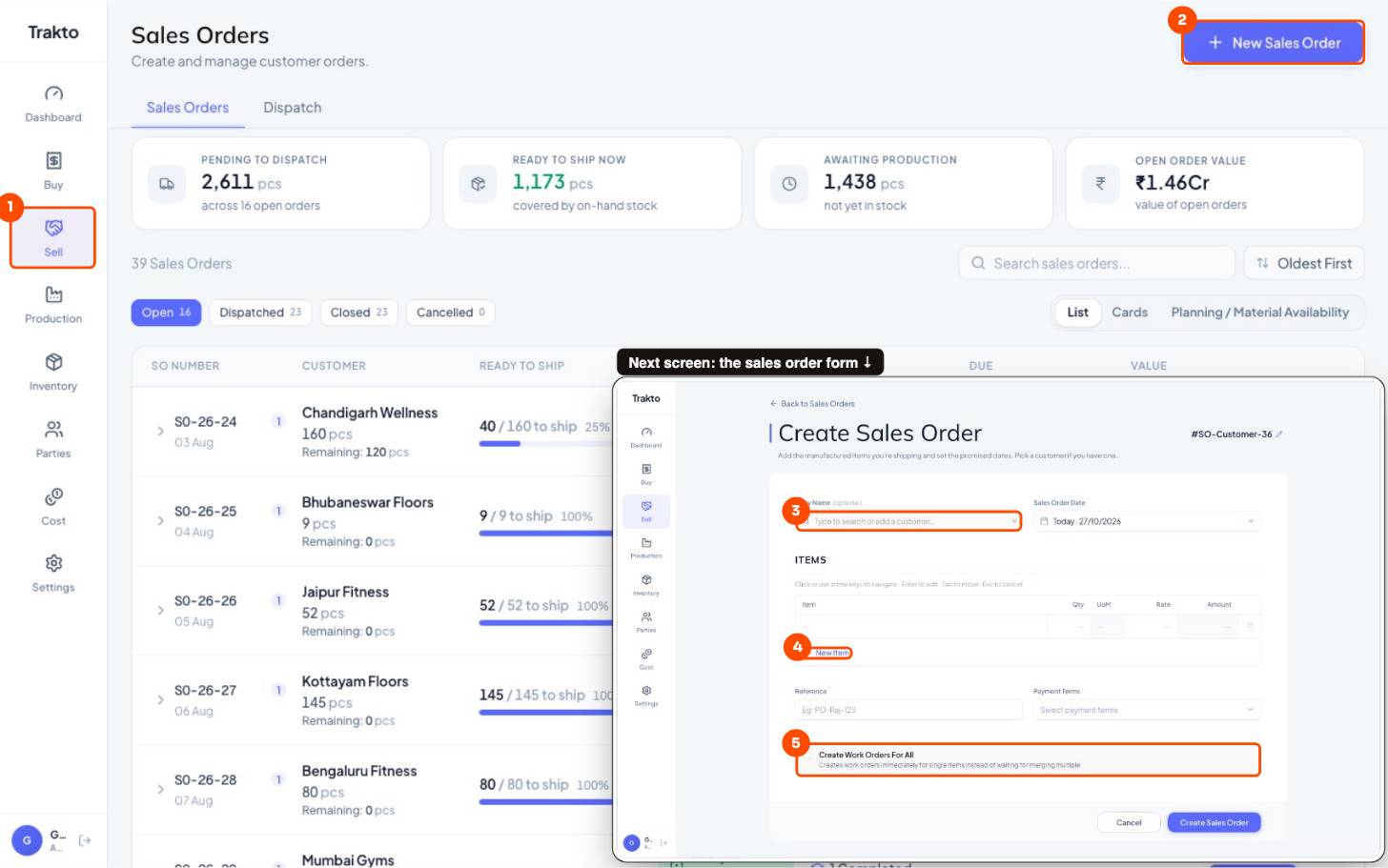
- 1SellIn the left menu.
- 2New Sales OrderEnter the customer's order.
- 3CustomerType to search, or add a new one.
- 4New ItemEach variant, qty and rate. The margin estimate shows as you type.
- 5Create Work Orders For AllTick to make the work orders straight away.
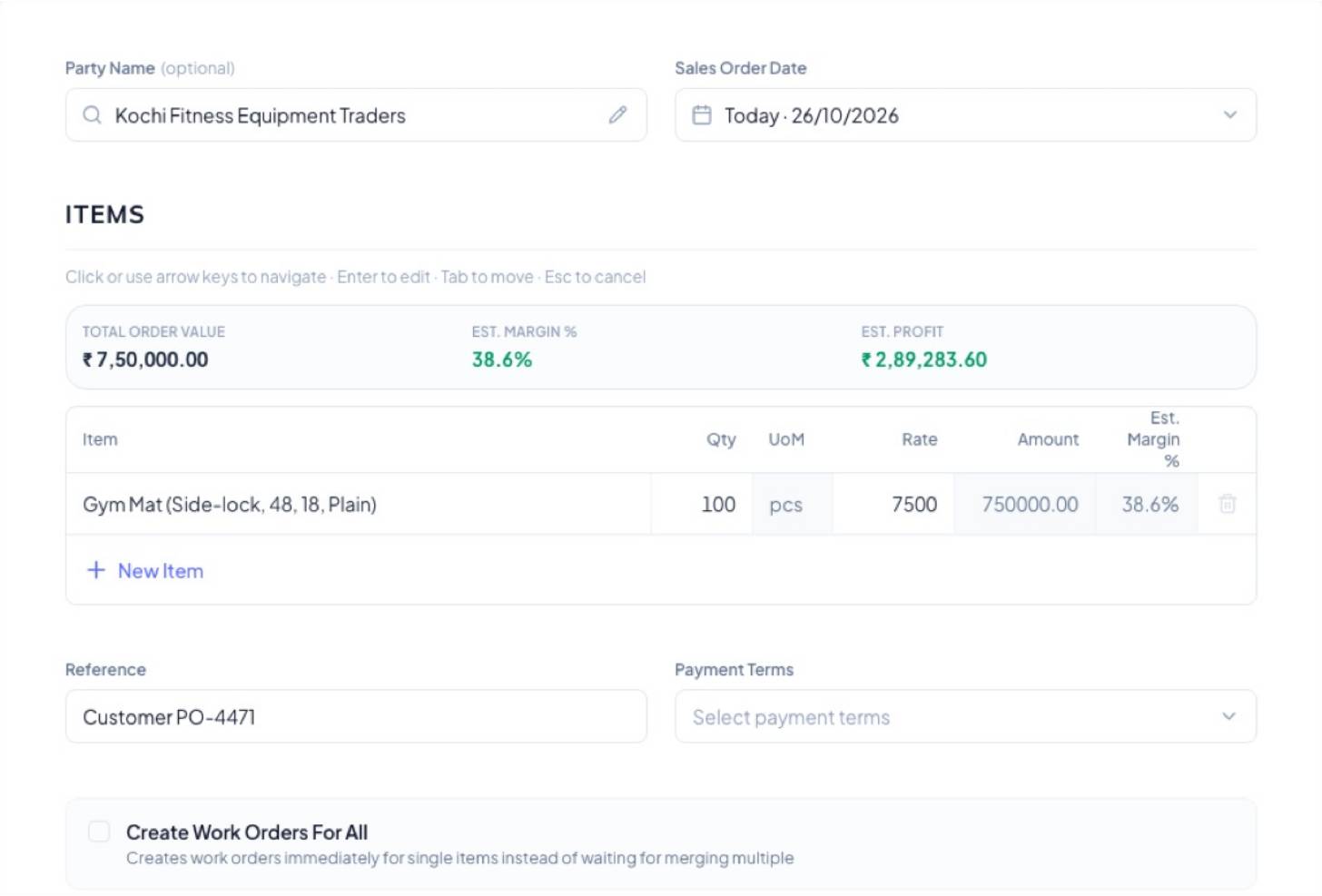
- Pick the customer (new customers get a region for reports).
- Pick the mat, narrow with chips (Thickness 18), type qty and rate. The estimated margin appears.
- Type the customer's PO number in Reference and save.
3Create the work orders
WhereSell → Sales Orders → open the order → Create Work Order
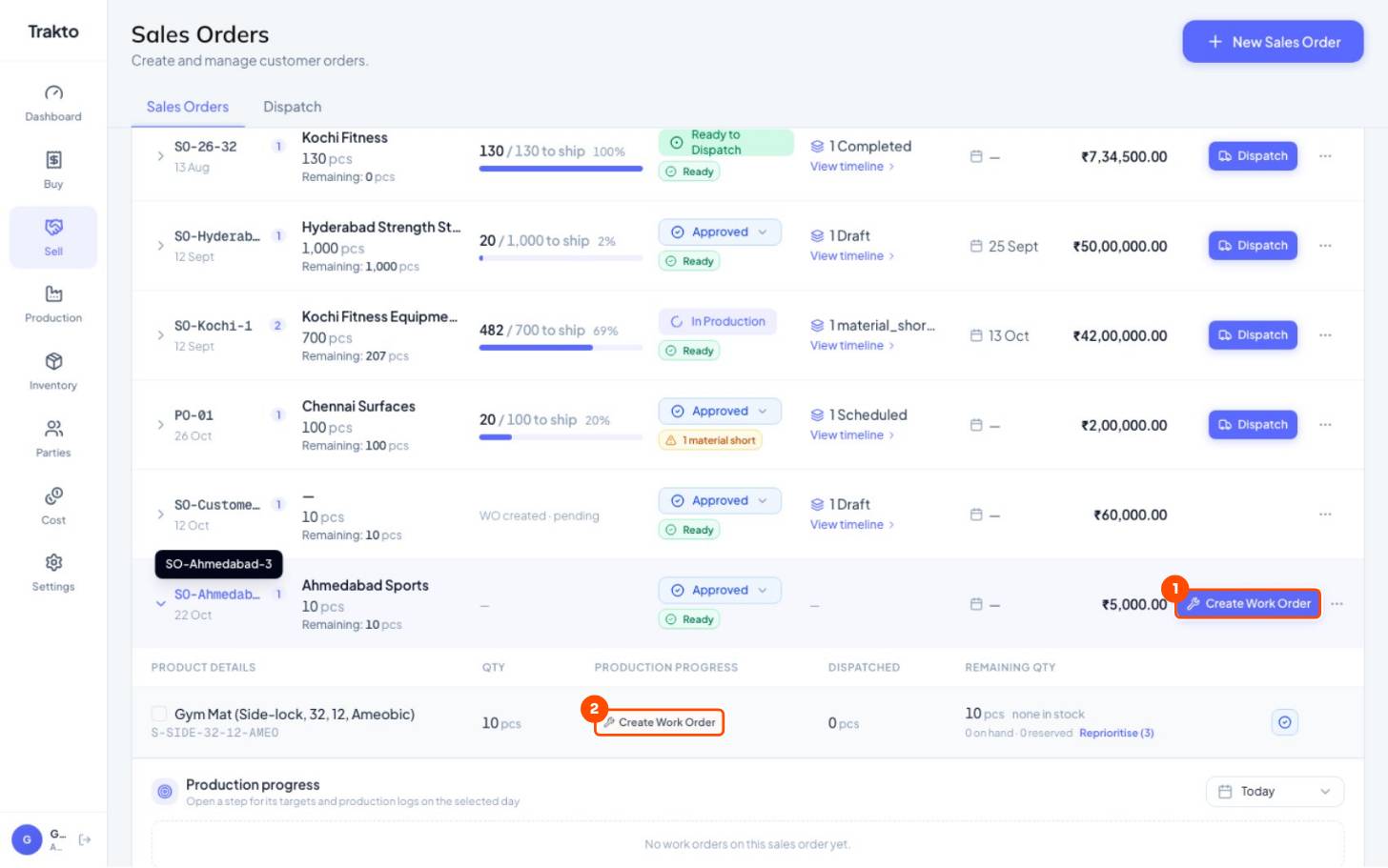
- 1Create Work Order (order)A draft work order for every line.
- 2Create Work Order (line)Only this line. Open the draft to set a smaller quantity, machine and start.
4What a work order needs (and nothing more)
WhereProduction → Work Orders → New Work Order (or open the draft made from the order)
- Item and quantity.
- Who it's for: the customer, or several orders under Masterbatch. Empty = make to stock.
- Machine: so it joins that press's queue.
- BOM, only if this order runs on a different recipe.
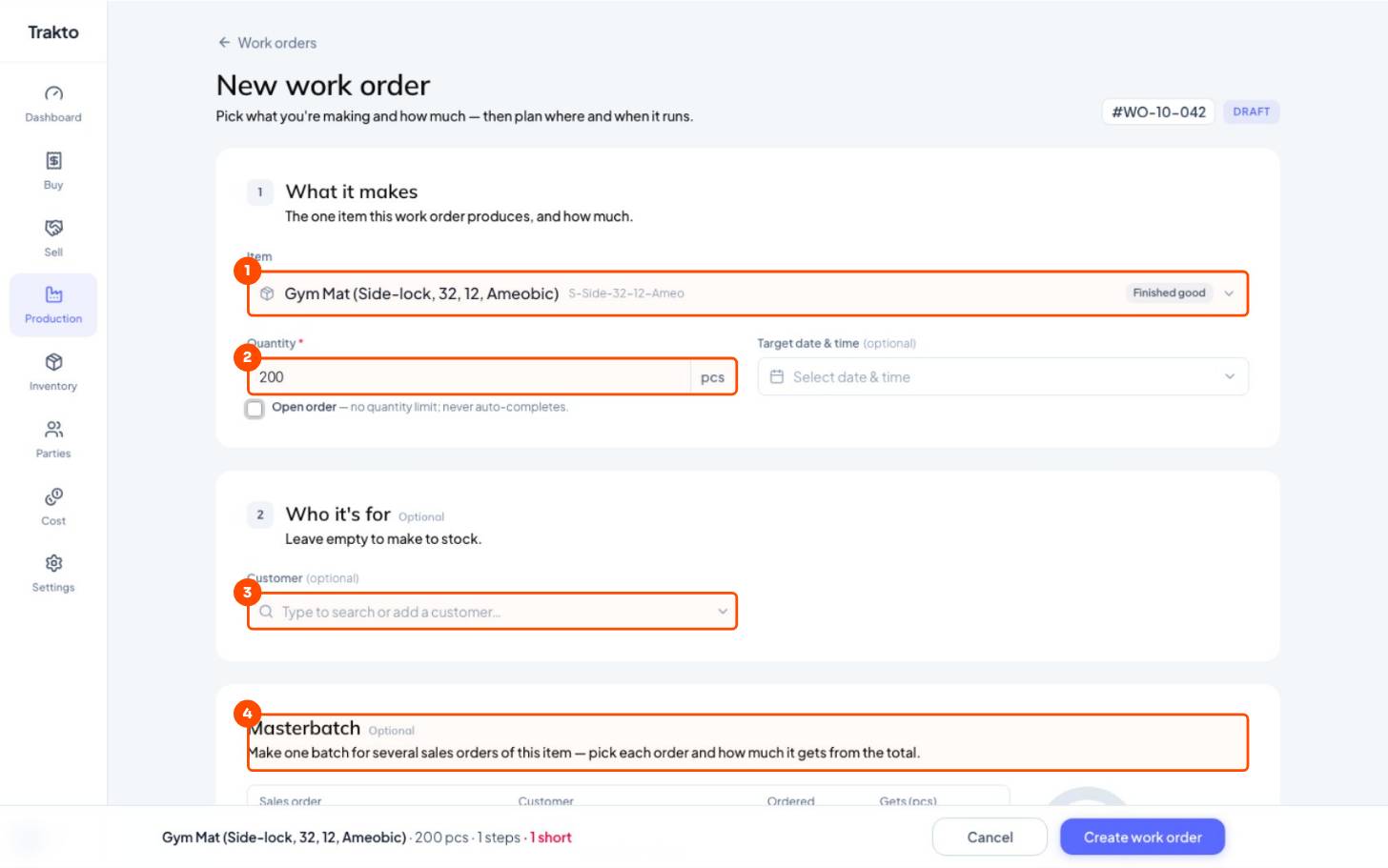
- 1ItemThe one variant to make.
- 2QuantityHow many this work order makes: the whole line or part of it.
- 3CustomerWho it's for. Empty = make to stock. Created from a sales order, this is filled in.
- 4MasterbatchOne run for several orders of the same variant: Add sales order, and how much each gets.
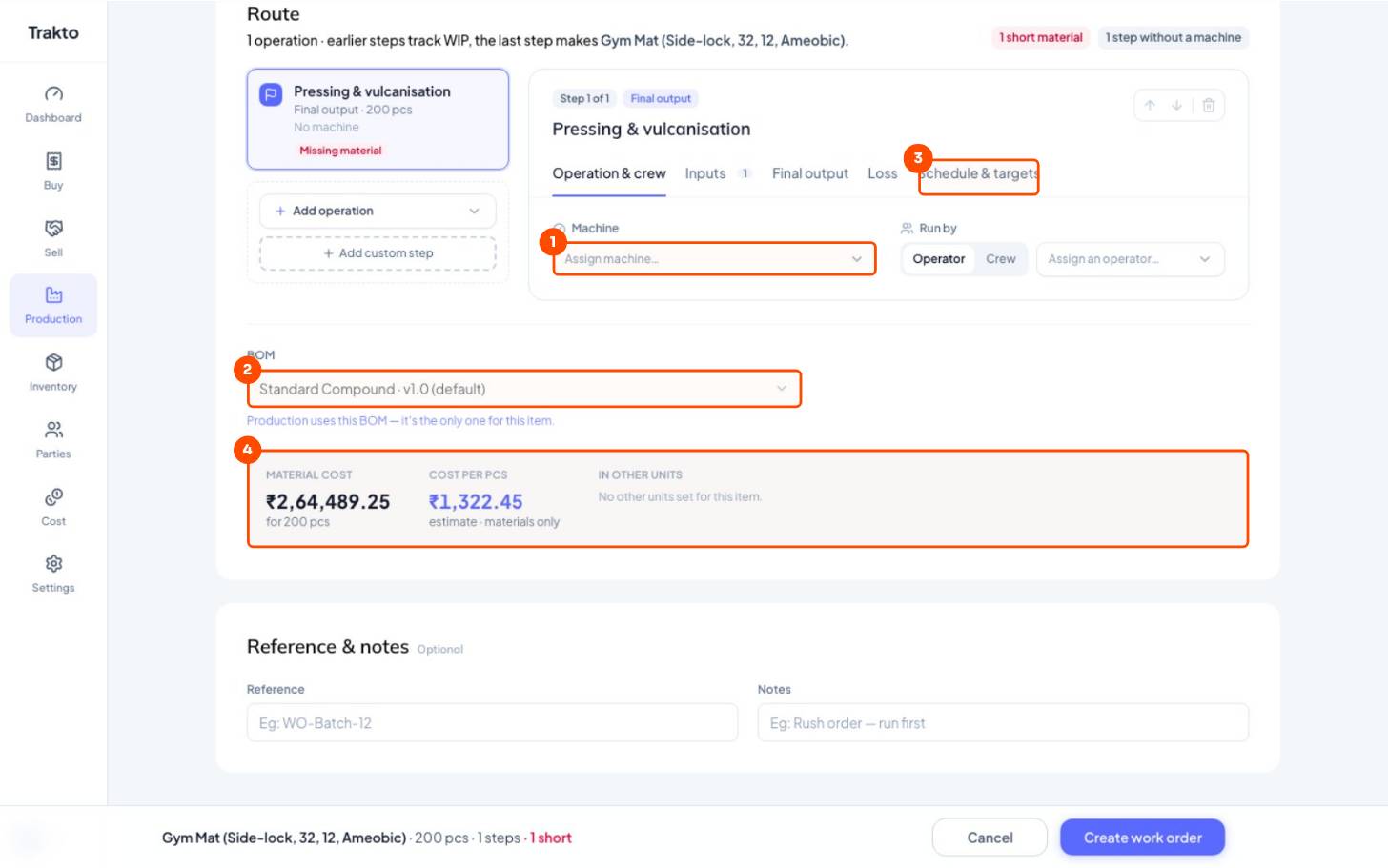
- 1MachineAssign the press. The order joins that machine's queue.
- 2BOMThe recipe this order uses. Pick another live or archived recipe here, or change it later on each log.
- 3Schedule & targetsPlanned start (first order on a machine only) and shift targets.
- 4Material costEstimate for this quantity before you save.
The recipe can be changed in two places: on the work order (every log uses it) or on a single log under Confirm materials.
The work order starts as a draft. Open it to set the quantity (lower it to make part now), the machine, the start and the shift targets. A line can have more than one work order; its production progress adds them up.
Still stuck?
Book a set-up call. We'll configure your compound, variants and machines with you.