Buying
Purchase entries with freight: the landed rate
Spread freight over the material so costing uses what it really cost.
The bill says ₹100/kg, but the lorry cost ₹10,000?
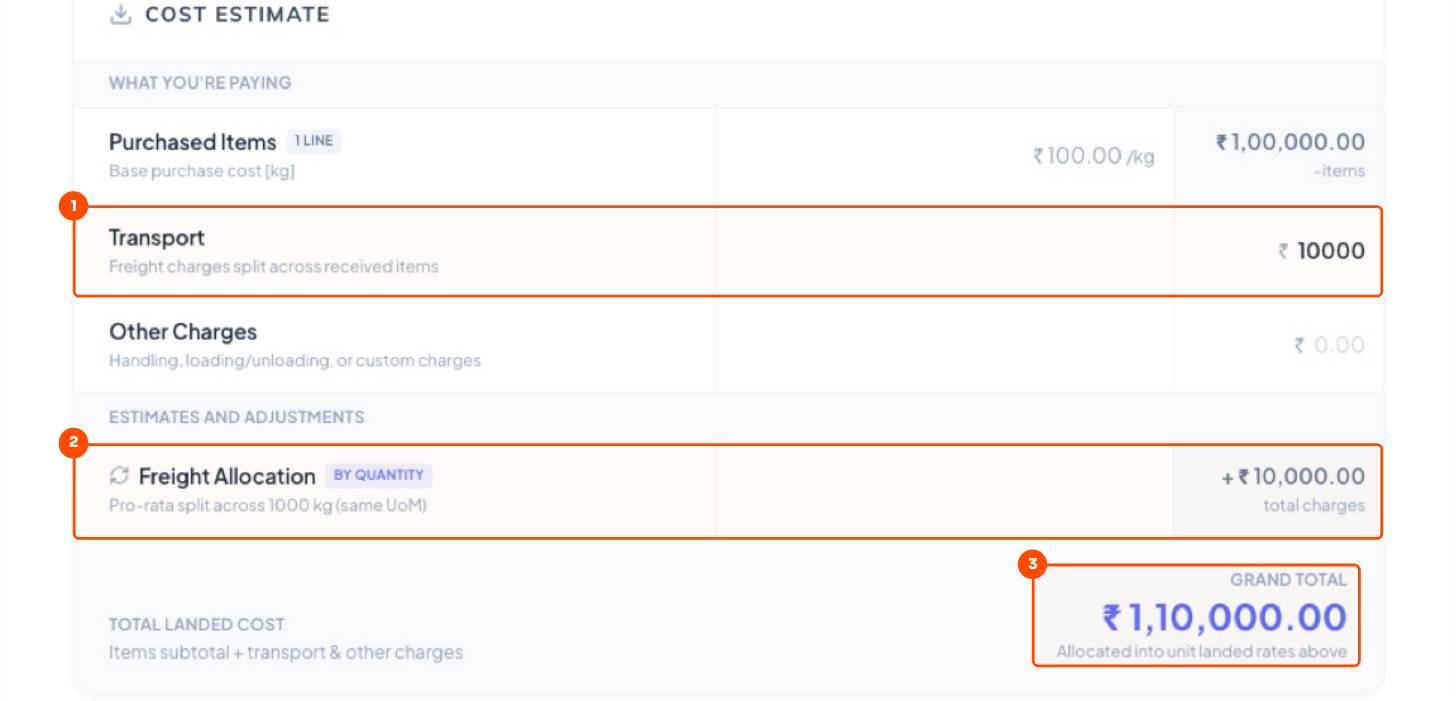
Type the freight on the GRN. Trakto spreads it and shows the landed rate, the rate costing uses.
1Create the GRN
WhereBuy → Goods In (GRN) → New GRN
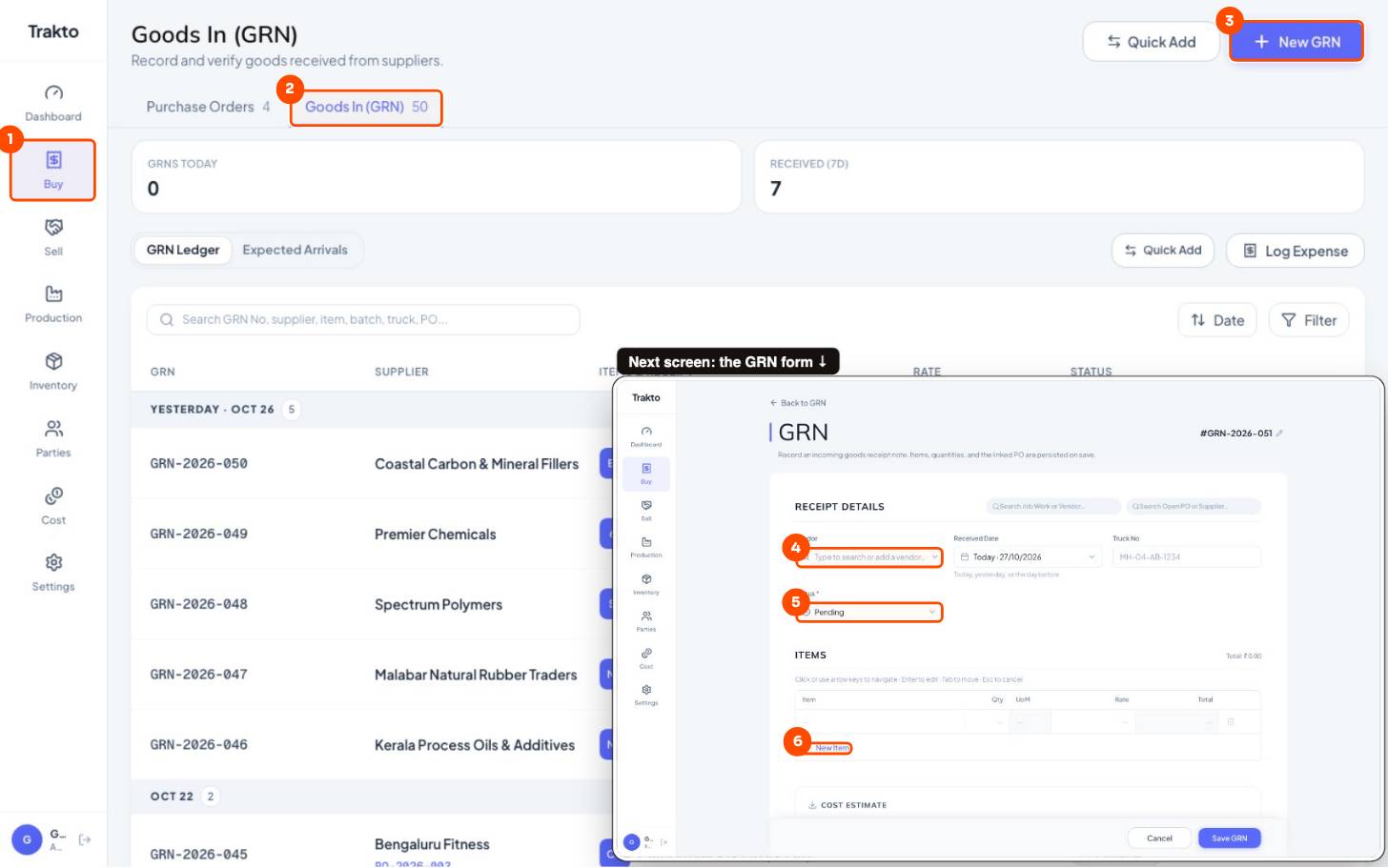
- 1BuyIn the left menu.
- 2Goods In (GRN)Every receipt from suppliers.
- 3New GRNRecord a delivery.
- 4VendorOr pick an open PO above to fill the lines.
- 5StatusApproved adds the stock; Pending waits for checking.
- 6New ItemOne line per material: qty and bill rate. Freight goes in the cost section below.
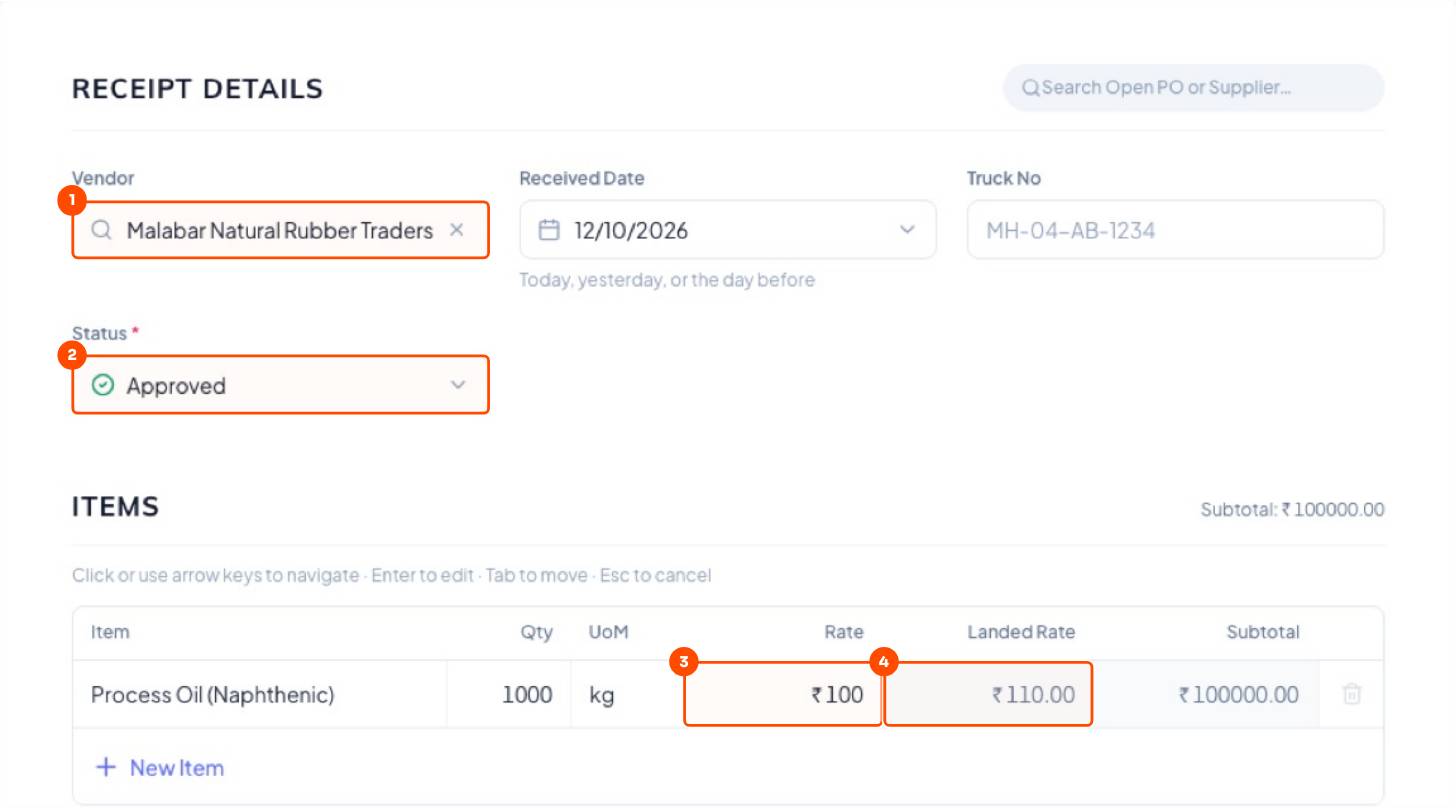
- Vendor (or an open PO), date and truck number.
- Each item, qty and bill rate.
- In Cost Estimate, type Transport and other charges.
- Status Approved → Save GRN.
2Store staff without rate access
Rates are visible only to roles with View and enter purchase costs (roles). Others record a quantity-only GRN: no rate column. The rate reaches the GRN in one of two ways:
From the purchase order
Someone with access creates the PO with rates. The store receives the GRN against that PO, and each line takes the PO's rate automatically, without the store ever seeing it.
Added later
The store saves the GRN without a rate. Someone with access opens it and types the rate. A rate already entered is never overwritten by someone without access.
3When does stock go up?
Only when the GRN is Approved. Use Pending when the truck has arrived but no one has checked it, Quality Check during testing, and On Hold if something is wrong.
Still stuck?
Book a set-up call. We'll configure your compound, variants and machines with you.